Transformations and geoid models
Choose a transformation
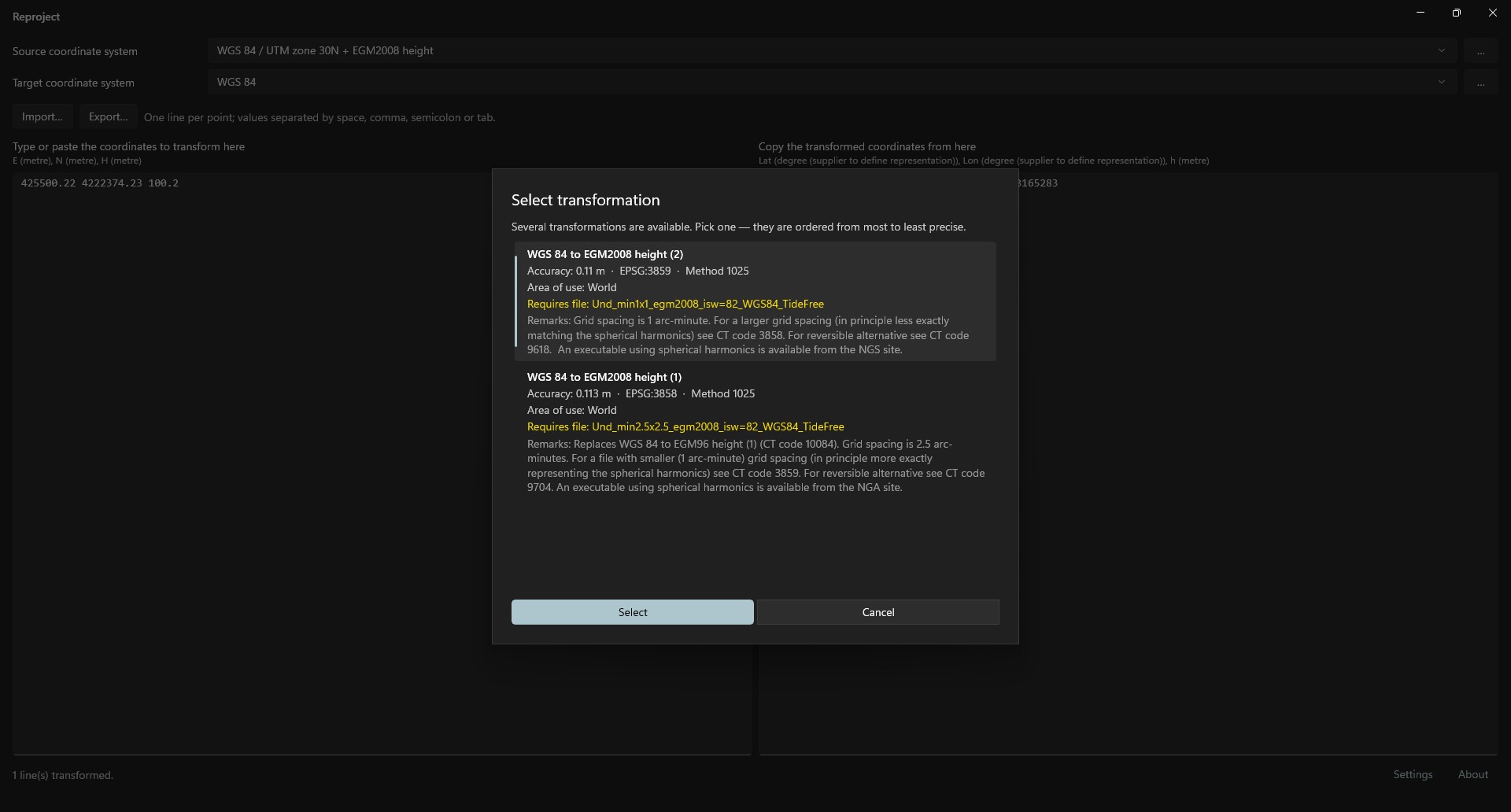
EPSG may offer several transformations between systems. For example, WGS 84 to EGM2008 height has one per geoid grid resolution.
When several exist, selecting source or target opens Select transformation. Operations are ordered from most to least accurate, with unknown accuracy last. The first is selected.
Each shows:
- Name.
- Accuracy in meters (or “unknown”), EPSG code and method code.
- Area of use.
- Required grid file, if any.
- A download link when the application cannot download it directly.
- EPSG scope and remarks.
Click Select or double-click. Cancel creates no transformation and leaves output empty.
The choice is remembered for the system pair across restarts. Changing source or target forgets it and asks again.
Starting without a remembered transformation uses the most accurate one without prompting.
Geoid models
Some transformations, such as those to heights above a geoid, require a grid file (geoid model). These files are not included in the package.
If a required file is absent from the geoid model directory:
- A known direct download URL opens Download geoid model, showing filename and size. Download saves it to the geoid model directory with progress. Once started, download cannot be cancelled. Completion creates the transformation.
- If only the publishing organization's website is known, Geoid model required shows filename and destination folder. Open download page opens the website; Open folder opens the geoid directory. Download and copy the file there, then select the system again.
- If no source is known, the main window error banner shows the error.
At startup, the application obtains geoid model sources from a public file in the CrsKit repository. Offline, it uses the last downloaded copy or its bundled list. Sources include global EGM2008 (NGA) and Spanish EGM08-REDNAP (IGN).
Geoid model directory
Settings in the status bar opens Settings:
- Geoid model (grid) directory: folder searched for geoid files and used for downloads. Default:
Reproject\Gridsunder local user data. - Browse…: selects another folder.
- Open folder in Explorer: opens the folder, creating it first if necessary.
Click Save to save changes. The new directory takes effect after restarting.