Located a new version
Digi3D.AI displays this dialog when a newer program version than the installed one has been published. The list contains features and fixes from versions published after the installed version's compilation date.
When it appears
- At startup, if Check for a new version is Yes.
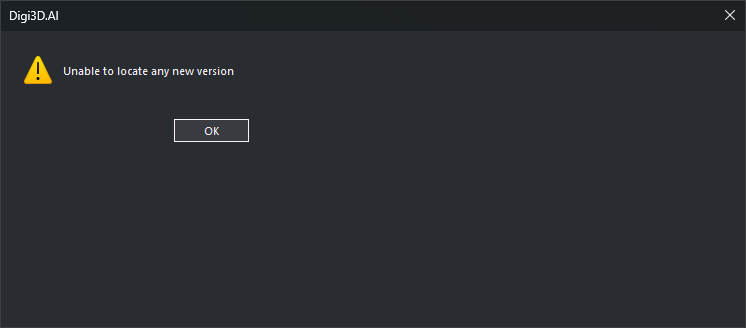
- When selecting Tools/Check for a new version.... If none exists, Digi3D.AI displays “Unable to locate any new version”.
Digi3D.AI checks versions published on www.digi21.net. If Allow installing BETA versions is Yes, the list includes BETA versions. Release notes appear in the interface language.
Release notes list
Each row is a feature or fix from a version:
- Release/Correction: row type.
- Title: short description.
- Version: version in which it was published.
- Date: that version's publication date.
Double-click a row to open Details of the new release.
Buttons
- Install: downloads and runs the installer for the latest listed version.
- If the dongle's technical support subscription ended before that version's publication date, Digi3D.AI first displays You do not have a license to run this version.
- Downloading shows a progress bar during download. Its Cancel button stops the download.
- If the dialog appeared at startup, Digi3D.AI closes so the installer can replace it. If opened from Tools, Digi3D.AI stays open while the installer runs.
- Omit: closes without downloading anything.
Details of the new release
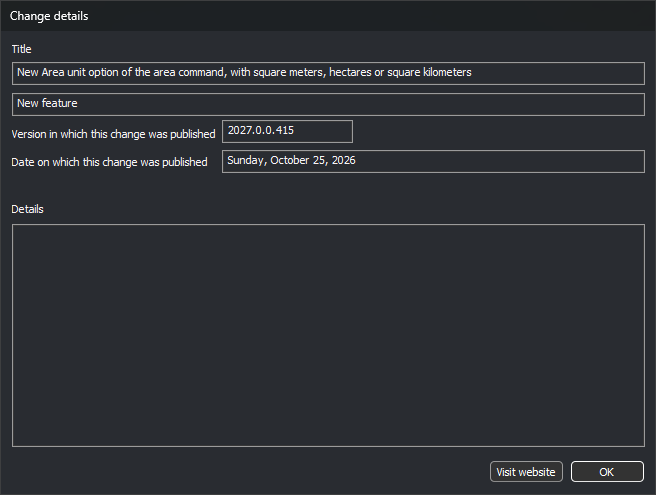
Shows the item in the double-clicked row:
- Title: short description.
- Type: Release or Correction.
- Version in which this release was published.
- Date on which this release was published.
- Details: full description, if provided.
- Visit website: opens the help page explaining the item. Disabled if the item has no page.
- Accept: closes the dialog.
You do not have a license to run this version
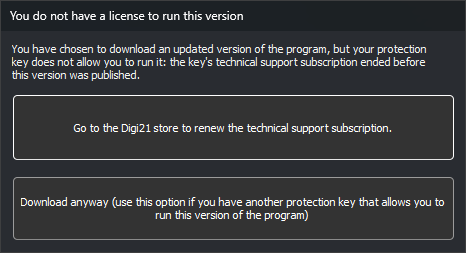
Digi3D.AI displays this dialog when you click Install if the dongle's technical support subscription ended before the new version's publication date. That dongle cannot run the new version.
- Go to the Digi21 store to renew the subscription for technical support.: opens the www.digi21.net store and closes both dialogs without downloading anything.
- Download anyway: downloads and runs the installer. Use if you have another dongle that can run this version.
There is no close button. Esc is equivalent to Download anyway.