Create multiple models
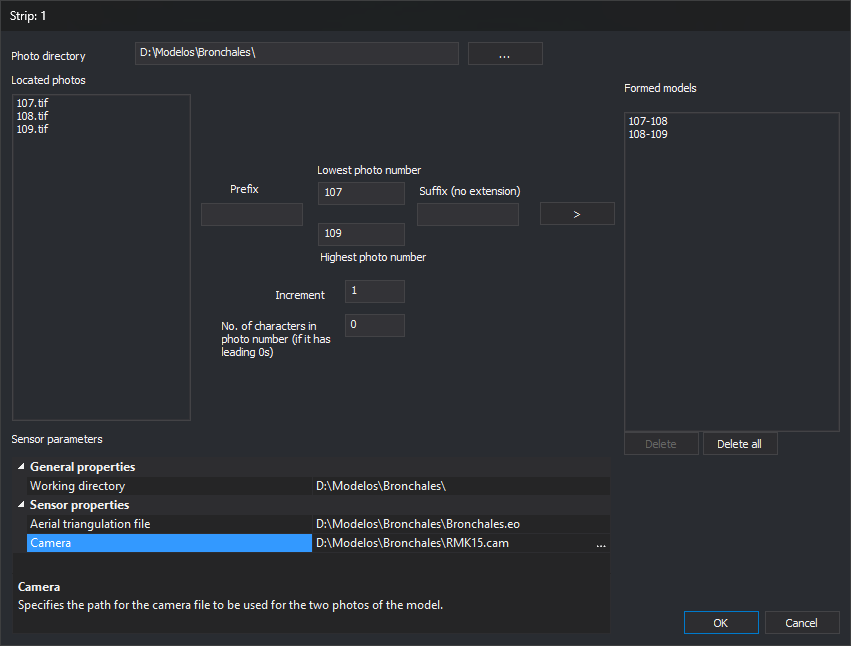
This dialog creates a strip's model files (.d3d) together from photo numbers and adds them to the selected strip. It is opened by Create Various in Models in Create photogrammetric project. That button is only enabled for Conical. The dialog title is the strip name.
Each model uses two photos whose numbers differ by Increase. For example, photos 107, 108 and 109 with an increment of 1 produce 107-108 and 108-109.
Fields
- Directory containing photos: photo folder. ... selects it.
- Located photos: images in the folder, in any raster format supported by Digi3D.AI.
- Prefix: text preceding the number in photo names.
- Lowest photo number and Highest photo number: range of photo numbers from which models are formed.
- Postfix (without extension): text following the photo number, without the file extension.
- Increase: difference between the two photo numbers in a model. A negative value forms models from the highest photo towards the lowest. With 0, no models are formed.
- No. of characters in photo number (if it has leading 0s): number of digits in the photo number, padded with leading zeros. For example, 4 looks for photo 25 as 0025. With 0, the number has no padding.
- >: forms models and adds them to Formed models. For each photo number in the range, searches case-insensitively for the left and right photos named prefix + number + postfix. Adds the model only if both photos are found and it is not already listed. Enabled if Located photos contains at least one image and the highest photo number exceeds the lowest.
- Formed models: models to create, named left photo-right photo.
- Delete and Delete All: remove the selected model or all models from the list.
- Sensor parameters: Work directory, where model files are created, and parameters shared by all models of the selected sensor (for example, the aerial triangulation file and camera with Conical).
- OK: creates one left photo-right photo.d3d file per model in Formed models in the working directory, adds them to the strip and closes. Existing
.d3dfiles are overwritten without warning. If a file cannot be created, displays “Error when creating file: path” and continues. On completion, displays “Located errors when generating the following files:” with the failed files and leaves the dialog open. Successfully created files remain on disk. - Cancel: closes without creating models.
Notes
Digi3D.AI remembers prefix, postfix, photo numbers, increment and character count for the next time the dialog opens.