Use the ribbon with the keyboard
If you prefer the keyboard, MDTopX provides shortcuts for completing tasks quickly without a mouse.
Access keys run commands with a few keystrokes from anywhere in the program. Every ribbon command has an access key, and most commands require two to four keystrokes.
- Press and release ALT. KeyTips appear for each feature available in the current view.
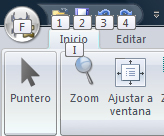
- Press the letter shown in the desired feature's KeyTip.
- Depending on the key pressed, more KeyTips may appear.
- Continue pressing letters until you reach the desired command or control.
- Press and release ALT to cancel the current action and hide KeyTips.
You can also move keyboard focus between tabs and commands until you reach the desired feature. The following table shows ways to move focus without a mouse.
| To | Press |
|---|---|
| Select the active ribbon tab and enable access keys. | ALT or F10. Press either again to return to the document and cancel access keys. |
| Move to another ribbon tab. | ALT or F10 to select the active tab, then LEFT ARROW or RIGHT ARROW. |
| Minimize or restore the ribbon. | CTRL+F1 |
| Show the selected command's context menu. | SHIFT+F10 |
| Move focus between these window areas: - Active ribbon tab - Status bar at the bottom of the window - Your document |
F6 |
| Move focus forward or backward through ribbon commands. | ALT or F10, then TAB or SHIFT+TAB. |
| Move up, down, left or right through ribbon items. | DOWN ARROW, UP ARROW, LEFT ARROW or RIGHT ARROW. |
| Activate the selected ribbon command or control. | SPACEBAR or ENTER |
| Open the selected ribbon menu or gallery. | SPACEBAR or ENTER |
| Activate a ribbon command or control to change a value. | ENTER |
| Finish changing a control's value and return focus to the document. | ENTER |
| Get help for the selected ribbon command or control (if no help topic is associated with it, general program help appears). | F1 |