Compute new vertical alignment
Select New alignment on the Vertical tab. Enter the vertices defining its straight sections on screen with the left mouse button, then right-click to finish.
The following dialog configures the vertical alignment and inserts parabolic vertical curves.
It also appears when requesting information about an existing vertical alignment with the toolbar's Info tool.
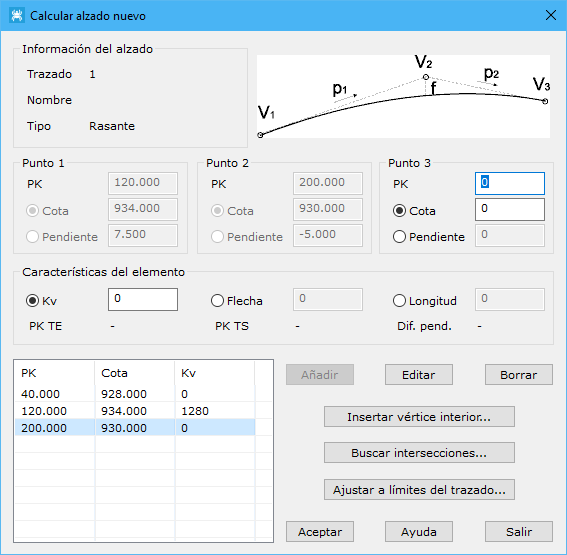
Displayed fields:
- Vertical alignment information: horizontal alignment, name and type, Design or Terrain according to whether obtained from the DTM or drawn by the user.
- Point 1: chainage and elevation of the selected segment's point 1. Slope corresponds to the preceding segment.
- Point 2: chainage and elevation of point 2. Slope corresponds to the preceding segment joining it to point 1.
- Point 3: chainage and elevation of point 3. Slope corresponds to the preceding segment joining it to point 2.
- Element features: parameters defining a new or selected existing vertical curve. Change the first three below to define it. Remaining parameters update automatically; proceeding is possible only when chainages lie between points 1 and 3.
- Kv: parabola constant.
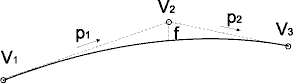
- Shaft: elevation difference between vertex 2 and the curve at the same chainage.
- Length: curve length in meters.
- PK TE: chainage where the vertical alignment is tangent to its initial straight section.
- PK TS: chainage where it is tangent to its final straight section.
- Dif. pend.: slope difference in percentage points.
- Vertical alignment vertex list: vertices with chainage, elevation and Kv if containing a parabolic curve. Three associated buttons:
- Add: appends a new vertex.
- Edit: edits the selected point. Enables all vertex fields and displays Modify and Cancel to accept or reject curve changes.
- Erase: deletes the selected point.
Three more buttons provide operations:
- Insert interior vertex: inserts an interior vertex at a specified chainage.
- Search intersections: finds plan intersections with other alignments, calculates elevation differences between vertical alignments and acts accordingly.
- Fit to horizontal alignment limits: matches the vertical alignment's start and end chainages to the horizontal alignment.