MCP server
Configures the MCP server, which allows Claude Code, Claude Desktop, or another MCP client to work in Digi3D.AI.
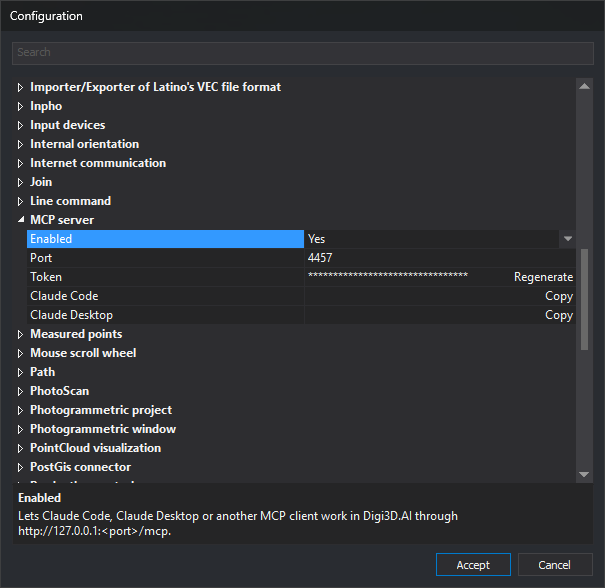
Configure these options in the Configuration dialog.
Options
- Enabled — Enables the MCP server.
- Port — TCP port on which the server listens.
- Token — Key sent by clients to connect to the MCP server. The Regenerate button creates a new token.
- Claude Code — The Copy button copies the command that connects Claude Code to the clipboard.
- Claude Desktop — The Copy button copies the configuration that connects Claude Desktop to the clipboard.
Applying changes
Changes are saved when you click Accept in the Configuration dialog. If you changed Enabled, Port, or Token, Digi3D.AI saves all three values and restarts the server. If none of the three changed, the server keeps running without restarting.
The Regenerate and Copy buttons also save the Enabled, Port, and Token values displayed in the dialog and restart the server if any of those three values changed. The copied command and configuration allow connection to the server even if you click Cancel after copying the command or configuration with Copy.
The Confirm dangerous operations option in the AI assistant category also affects MCP clients.