Configuration of virtual keyboards
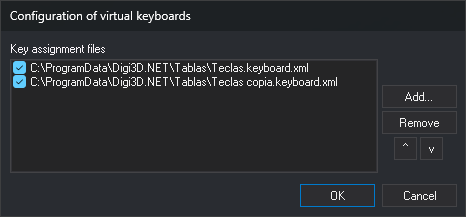
This dialog specifies which key assignment files (.keyboard.xml) Digi3D.AI loads and in what order.
Opening the dialog
Select Tools/Configure virtual keyboards.... This option appears only in the menu shown when no drawing or photogrammetric window is open. It is disabled when projects are enabled.
Fields
- Key assignment files: configured files, in loading order. The checkbox to each file's left determines whether it is loaded. Clear it to stop loading a file without removing it from the list.
- Add...: selects a
.keyboard.xmlfile and appends it to the list with its checkbox selected. A file already in the list is not added again. - Remove: removes the selected file from the list.
- ^ and v: move the selected file up or down one position.
- OK: saves the list for the current Windows user; each computer user has a separate list.
- Cancel: closes without saving changes.
Notes
When opening a drawing or photogrammetric window, Digi3D.AI loads every checked file in the list. When projects are enabled, Digi3D.AI does not use this list: it loads only the file specified in Keyboard in the project configuration (see Configure projects).
If a file cannot be loaded, Digi3D.AI displays “Unable to load a key configuration file”, with the file path and the cause in More information, and continues with the next file.
If several files are loaded, switch between them with:
- CHANGE_KEYS_MNU.
- The Keyboards toolbar drop-down list.