Styles
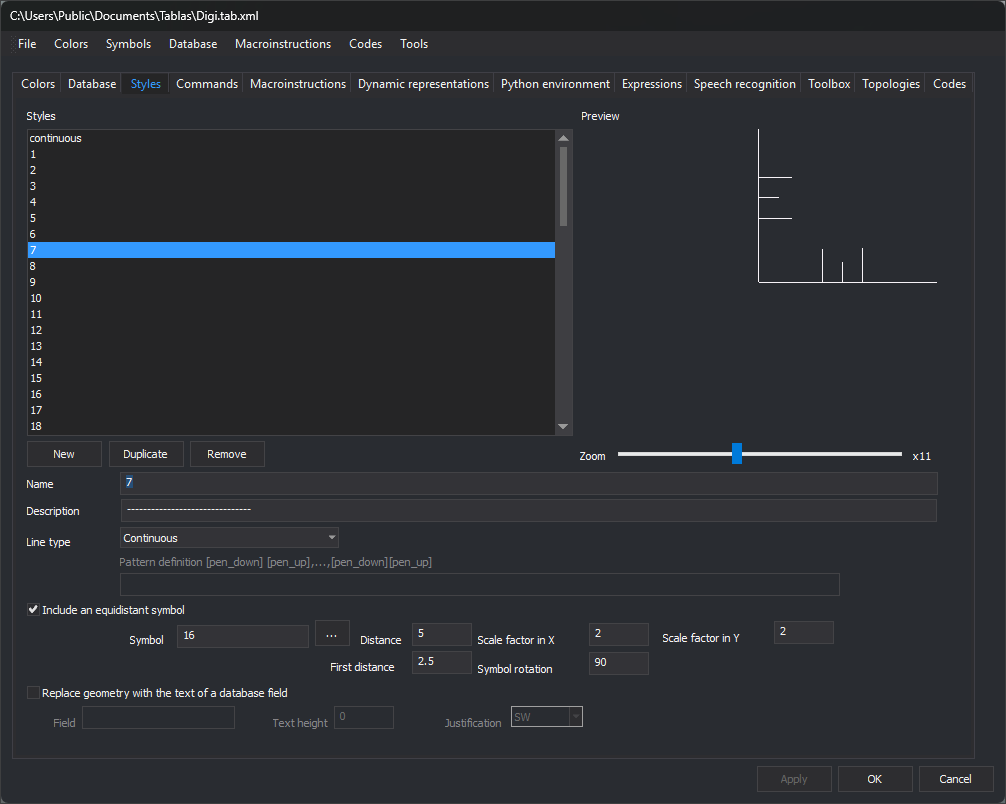
This tab configures geometry drawing styles. Each code representation references a style; color and weight belong to the representation, not the style.
Styles
Code table style list. Selecting a style shows its properties below and its drawing in Preview.
- New: creates an unapplied StyleN with the first available number, a continuous line and no symbol.
- Duplicate: creates an unapplied Copy of: name. Disabled while the selected style has unapplied changes.
- Remove: deletes the selected style, except the last. If codes use it, a task dialog lists them and offers the first style as replacement (the second if deleting the first), or lets you choose in Select style.
Preview and Zoom
Preview draws the style. Zoom changes its scale, with the factor shown to the right.
Name and Description
- Name: style name. Case-insensitive duplicates are forbidden: applying displays a warning and leaves changes unapplied. Renaming updates code representations using the style.
- Description: optional description.
Type of line
How this style draws a line. Does not affect point geometries.
- Invisible: no baseline.
- Continuous: continuous line.
- With pattern: follows Pattern definition, enabled only with this option.
Pattern definition
Values alternating drawn segments (pen down) and gaps (pen up), in millimeters at drawing scale: at 1:1000, 1 equals 1 meter. Separate with spaces or commas. For ---- - ---- - ----:
4 1 1 1
- Draw 4 mm.
- Leave 1 mm.
- Draw 1 mm.
- Leave 1 mm.
Include an equidistant symbol
When enabled, draws symbols along a line or at a point geometry's position. Enables:
- Symbol: symbol name. Symbols are
.bindrawings in the folder under Tools/Configuration..., usuallyC:\ProgramData\Digi3D.NET\Símbolos. ... opens Select symbol, showing symbols and textures there. - Distance: symbol spacing along the line, in millimeters at drawing scale, as with First distance. With 0, no symbol is drawn on the line.
- First distance: distance from the first vertex to the first symbol.
- Scale factor in X and Scale factor in Y: horizontal and vertical symbol scale. With 0, no symbol is drawn.
- Symbol rotation: clockwise rotation in sexagesimal degrees, relative to each line segment. Point geometries use the point rotation.
If a symbol is missing, check its folder under Tools/Configuration....
Replace geometry with the text of a database field
Draws a database record field's value as text instead of the geometry. Enables:
- Field: field whose value is drawn.
- Text height: text height.
- Justification: text point placed at the geometry: SO, O, NO, N, NE, E, SE, S or C (center).
Apply changes
Changes apply with Apply or OK. Selecting another style or clicking New with unapplied changes asks “Do you want to save the changes?”: Yes applies, No discards. Switching tabs opens the next dialog.
Changing pages
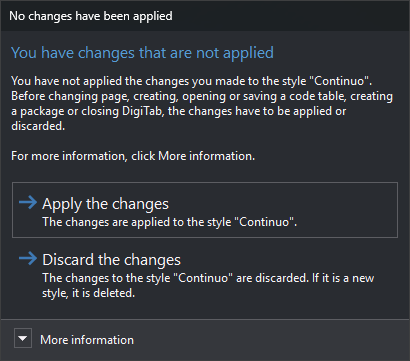
Appears with unapplied style changes when switching tabs, clicking OK or selecting New, Open..., Save, Save as... or a package creation option under File.
- Apply the changes: applies changes. Renaming updates codes using the style. A duplicate name displays a warning and prevents applying. Default button.
- Discard the changes: discards changes and clears style selection. A new style is deleted. Esc selects this button.
More information explains that style changes affect other pages: for example, style names appear in Codes. Either button continues the tab change or operation.