User toolbars
User toolbars contain buttons that run Digi3D.AI commands. Each Windows user has separate toolbars.
Their buttons are disabled while no drawing or photogrammetric window is open.
Toolbar manager
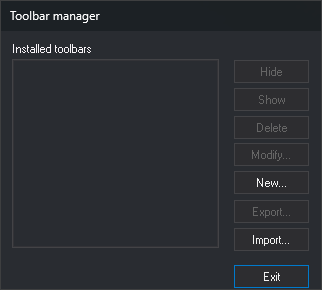
Select Tools/User toolbars... to open this dialog. It shows Installed toolbars and the buttons below. Buttons acting on a toolbar are disabled until one is selected:
- New...: opens Create/Modify toolbar to create a toolbar.
- Modify...: opens the same dialog with the selected toolbar's data.
- Delete: deletes the toolbar without confirmation.
- Show and Hide: show or hide the toolbar in the main window.
- Export...: requests a folder and creates a folder named BarraHerramientas followed by the toolbar title. Saves its definition as BarraHerramientas.ini there, with copies of button images.
- Import...: requests a folder exported with Export... and adds its toolbar. If it has no BarraHerramientas.ini, or the file defines no buttons, no toolbar is added and no warning appears.
- Exit: closes the dialog. Changes take effect immediately, without accepting.
Create/Modify toolbar
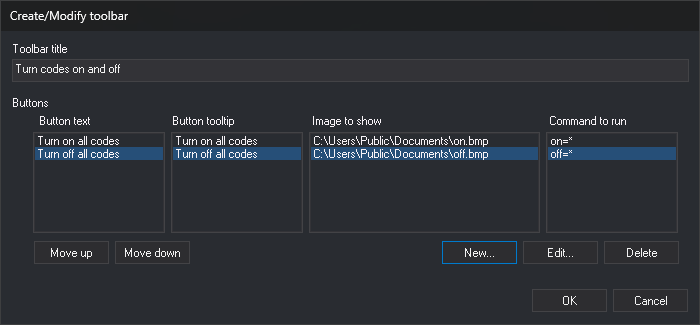
- Toolbar title: title displayed by the toolbar.
- Buttons: toolbar buttons, in display order. Each row in the four lists represents a button; selecting it in any list selects it in all four:
- Button text: text shown on the button.
- Button tooltip: text shown when the mouse rests over the button.
- Image to be shown: button image file.
- Command to be run: command run when clicked.
- Move up and Move down: change the selected button's position.
- New...: opens Toolbar button data and appends a button.
- Edit...: opens the same dialog with the selected button's data.
- Delete: deletes the selected button.
- OK: saves the toolbar. Cancel discards changes.
A toolbar saved without buttons is not recreated the next time Digi3D.AI starts.
Toolbar button data
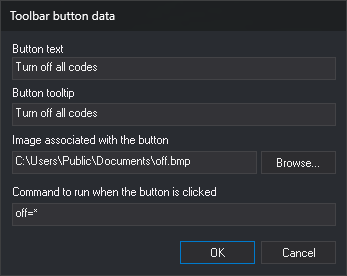
- Button text: text shown on the button.
- Button tooltip: text shown when the mouse rests over the button.
- Image associated with the button: button image file. Digi3D.AI scales it to 16×16 pixels. Examine... opens file selection with Bitmap files (
.bmp) and All files filters. Although All files allows other formats, Digi3D.AI loads only BMP images. - Command to be run when button clicked: command and parameters as entered on the command line.
- OK: saves the button data. Disabled when:
- Button tooltip is empty.
- Both Button text and Image associated with the button are empty.
- The file under Image associated with the button does not exist.
- Command to be run when button clicked is empty.