Projects in Azure
A project groups clouds to publish together in Azure. Studio maintains a content catalog; Lot Of Points uses it to open project clouds and read them as needed.
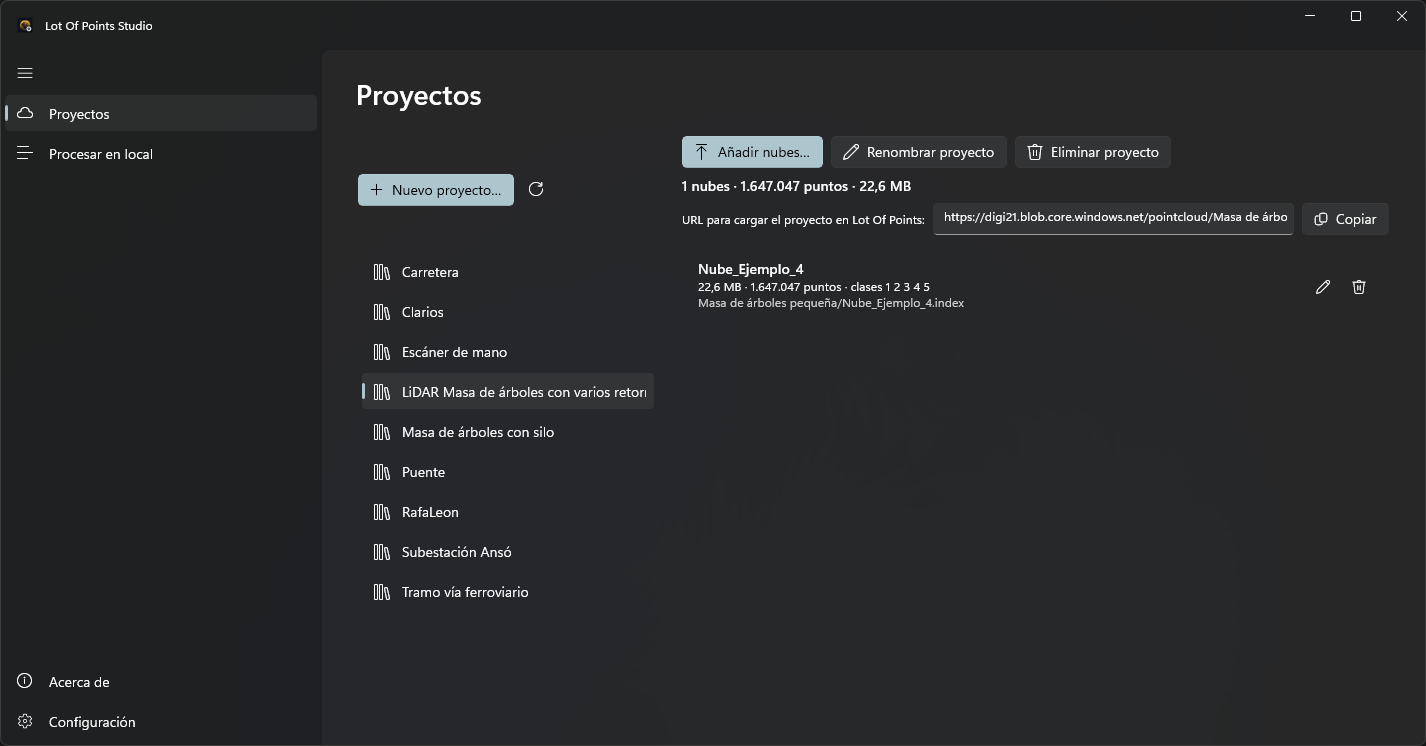
Connect the container
Before browsing or publishing, enter a container uniform resource locator (URL) with a Shared Access Signature (SAS) in Settings. The signature determines permissions and expiration.
A read-only URL with Read and List SAS permissions lets you browse projects, clouds, statistics and thumbnails. Read-only appears and publication/deletion buttons are hidden. To create projects or change contents, also configure the write-SAS URL.
Entering Projects lists container projects on the left. Select one to see its clouds on the right. The circular-arrow button refreshes the project list.
Create a project
Click New project…, enter a name and confirm with Create. The project appears and is selected. Studio rejects names matching another project's display name or identifier, case-insensitively.
The name is used in the published catalog URL. When entering a catalog URL, preserve filename case: Azure is case-sensitive. The creation dialog replaces slashes with hyphens and removes question marks.
Add and publish clouds
Click Add clouds… with the project selected and choose original files. The same formats as local processing are supported. Each file enters Tasks with that project as destination.
Studio resolves each file's reference system before queuing. The project system is the catalog's first valid WKT (Well-Known Text) whose horizontal component is nonlocal. It is preselected when a file requires a choice.
If a file has a valid, nonlocal system not equivalent to the project's, Studio shows the project system and affected files and asks for confirmation with Add to the queue. Cancel queues none of the selected files. Equivalence compares horizontal components and compares vertical ones only if both systems have a vertical component.
Studio prepares the level of detail or reuses a cache, then enters Uploading to Azure. Publication includes points, index, available additional attributes and spherical images with thumbnails. The catalog is updated after those uploads. Once finished, the selected project's list refreshes to show the cloud.
Studio publishes <nombre>.prj before the index when it exists in the cache. If absent, Studio deletes the previously published .prj for that cloud. Publication finishes before local-cache deletion.
On first publication, the cloud name and file URLs derive from the original filename without extension. Republishing to that URL replaces cloud data and preserves the display name assigned in Studio. For a new cloud with a different URL and an occupied display name, Studio adds “ (2)”, “ (3)” and subsequent numbers until a name is free. Matching names do not replace a cloud with a different URL. To publish two different clouds in one project, use different filenames even from different folders; filename determines publication URL.
Once published, access the cloud through the project link. No manual file copy to the viewer's computer is needed.
View and assign the reference system
Each published cloud shows the system read from its container <nombre>.prj. Its row shows the name, unknown for a local horizontal component, not assigned for a missing file, or a warning for invalid WKT.
- Click a cloud's globe button to assign a system, or Reference system… to assign one to all project clouds.
- Choose a system or indicate it is unknown.
- Confirm.
The picker preselects the first saved system among selected clouds in list order. With none saved, it preselects nothing. Studio replaces each selected cloud's .prj with the chosen WKT. Use this for clouds published by Studio versions that did not publish .prj.
Rename projects and clouds
Click Rename project to change the selected project's name, enter the new name and confirm with Rename. Use a cloud row's pencil to change its name. Names must be nonempty and not match another project in the container or another cloud in the same project. Duplicate checks are case-insensitive.
Only the displayed name changes. Catalog and cloud URLs retain their values, so shared links remain valid without republication. The catalog stores the project display name in name. If absent, Studio shows the catalog filename. Lot Of Points also uses the display name when adding project clouds to Layers. An open catalog retains its name until closed and reopened.
Local cache behavior
If Studio created a new cache for publication, it attempts to delete it after upload: it was created to prepare Azure data and the cloud is now available there. Preexisting caches are retained because Lot Of Points or another application may be using them.
If upload is canceled or fails, the cache is retained. Read the reason in Tasks and add the file again to retry. Cancellation does not add the new catalog entry, although some uploaded files may remain in the container.
Delete clouds or projects
Click a cloud row's trash button and confirm with Delete. Studio removes its catalog entry and deletes its container files, including .prj, and images.
Delete project acts on the selected project: after confirmation, it deletes its catalog and all published files. These operations affect Azure contents; local originals retain their contents.
If access fails
Set up the container means no URL is configured. Read-only means read access is being used. Publishing or deleting requires write access.
Container query or modification failures appear as Container error: followed by the reason. Check URL, permissions and SAS expiration in Settings. Individual publication errors appear in that file's Tasks row.