Ask for photo skipping
If enabled, opening an Inpho project (.prj file) makes Digi3D.AI display the Skip photos? dialog, where you can choose how stereo models are formed for each strip.
Possible values
- Yes. The Skip photos? dialog appears whenever an Inpho project opens.
- No. The dialog does not appear, and each model is formed from two consecutive photos in the strip. This is the default value.
Skip photos? dialog
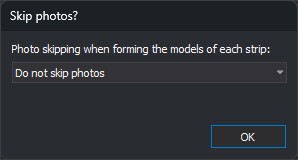
The drop-down list specifies how models are formed in each strip. Photos in a strip are traversed in the order in which they appear in the project file. In the table, n is the Photos to skip value and photos are numbered 1, 2, 3… within the strip:
| Option | Models formed | Example with n = 1 |
|---|---|---|
| Do not skip photos | Each photo that has a following photo in the strip forms a model with that following photo. | 1-2, 2-3, 3-4… |
| Skip photos | Each model is formed from a photo and the one n + 1 positions after it in the strip. Each model after the first starts at the right photo of the previous model, so intermediate photos are not part of any model. | 1-3, 3-5, 5-7… |
| Skip photos but use them for another model | Each model is formed from a photo and the one n + 1 positions after it in the strip. A model starts at each photo in the strip that has another photo n + 1 positions after it. | 1-3, 2-4, 3-5… |
Each model name consists of its left and right photo names separated by a hyphen.
Photos to skip
Specifies the number of photos between the left and right photos of each model. The Photos to skip field is only displayed if an option other than Do not skip photos is selected. The field accepts from 0 to 1000 photos, inclusive; with 0 photos, all three options form the same models.
OK
Loads the project with models formed according to the selected option. Pressing Esc closes the dialog and loads the project without skipping photos.
See also: Omit models for which no photo is available, which applies after models are formed.
Where it is stored
| File | Digi3DNET.db |
|---|---|
| Folder | Digi3D\Extensiones\Digi3D.ConicSensor\Inpho |
| Table | Ints |
| Value | MostrarDialogoSaltoFotos |
| Default value | 0 |
These SQL statements set the value 1, whether or not the row exists. Run them in the Advanced configuration dialog and restart Digi3D.AI:
INSERT OR IGNORE INTO Keys (Path) VALUES ('Digi3D\Extensiones\Digi3D.ConicSensor\Inpho');
DELETE FROM Ints WHERE Value = 'MostrarDialogoSaltoFotos' AND Key = (SELECT Id FROM Keys WHERE Path = 'Digi3D\Extensiones\Digi3D.ConicSensor\Inpho');
INSERT INTO Ints (Key, Value, Data) SELECT Id, 'MostrarDialogoSaltoFotos', 1 FROM Keys WHERE Path = 'Digi3D\Extensiones\Digi3D.ConicSensor\Inpho';