Convert ALOS images to TIFF with Alos2Digi3D
The ALOS (Advanced Land Observing Satellite) satellite, operated by Japan's space agency JAXA, carries the PRISM panchromatic sensor. JAXA distributes the images in CEOS format, the satellite image format defined by the Committee on Earth Observation Satellites. Each CEOS scene is a folder containing several files without extensions; each file name's prefix identifies its contents: VOL-, IMG-, LED-, TRL-...
Digi3D.AI does not open CEOS files. Alos2Digi3D converts each scene into a tiled TIFF with pyramid levels, which Digi3D.AI can open:
- A tile is a square image block of a fixed size that Digi3D.AI reads separately.
- A pyramid level is a copy of the image reduced to half, quarter, eighth size, etc. Digi3D.AI chooses a pyramid level according to the zoom.
Requirements
One folder per PRISM scene, containing:
- The volume file
VOL-<escena>-<producto>. Alos2Digi3D uses only this file's name; it does not read its contents. - At least four image files
IMG-NN-<escena>-<producto>, whereNNis the CCD detector number, from01to08.<escena>and<producto>are the second and third hyphen-separated parts of the VOL file name.
Every
IMG-NNfile in the scene has one band, one byte per pixel, the same number of pixels per line and the same number of lines.Alos2Digi3D does not read
LED-,TRL-or the scene's other files.- The volume file
Write permission in each scene folder. Alos2Digi3D saves the TIFF there.
Alos2Digi3D is designed for PRISM images, where each IMG-NN file contains one CCD detector's image. It does not handle multispectral images from AVNIR-2, ALOS's other optical sensor: given an AVNIR-2 scene, Alos2Digi3D would place its IMG-NN files side by side as if they were PRISM detectors.
1. Open Alos2Digi3D
Run
Alos2Digi3D.exein the Digi3D.AI installation folder (by default,C:\Program Files\Digi21.net\Digi3D.AI). ALOS to Tiff file transformer appears: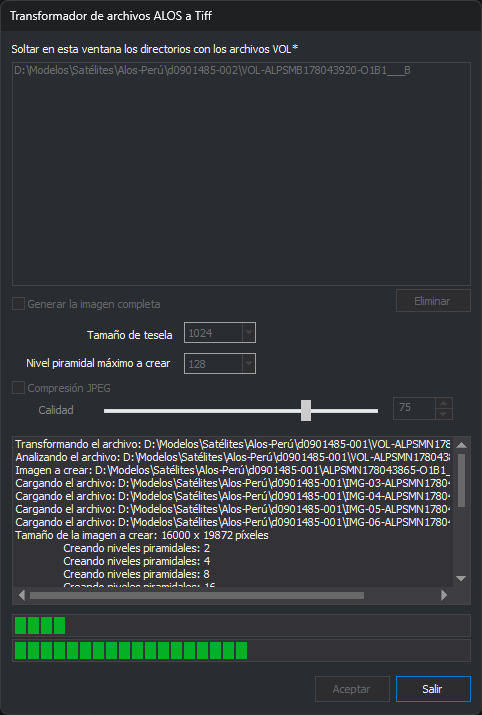
Alos2Digi3D displays its dialog and messages in Digi3D.AI's configured language and uses the same color theme. The dialog opens at the position where it was last closed.
2. Add scenes to the list
- Open File Explorer in the folder containing the scene folders.
- Select one or more scene folders and drag them onto the list below Drop the directories containing the VOL files in this window*.
Alos2Digi3D searches each dropped folder for extensionless files whose names begin with VOL and adds their full paths to the list. Each VOL file in the list represents one scene:
- It does not search subfolders of the dropped folder or add subfolders whose names begin with
VOL. - Dropping a file instead of a folder does not add it to the list, even if it is a VOL file.
- A folder without VOL files adds nothing to the list and produces no message.
- A VOL file already in the list is not added again.
- Folders dropped during conversion are not added.
Alos2Digi3D does not check IMG-NN files when adding a scene. It checks them during conversion.
To remove a scene, select it and click Remove. Only one scene can be selected at a time. Remove is disabled when no scene is selected.
3. Configure conversion
Generate the complete image
This option determines which detectors the TIFF covers. It is disabled by default.
Consecutive detectors' images overlap by 32 pixels. Alos2Digi3D places each image 32 pixels before the end of the previous one. In the overlap, the TIFF contains the higher-numbered detector's pixels.
- Disabled: the TIFF covers the scene's lowest-numbered through highest-numbered available detectors. For example, with
IMG-02,IMG-03,IMG-05andIMG-06, it covers detectors 2 through 6. - Enabled: the TIFF covers detector 1 through the scene's highest-numbered available detector. For example, with
IMG-03throughIMG-06, the areas for detectors 1 and 2 are black.
In both cases, Alos2Digi3D copies pixels from every IMG-NN file in the scene and positions each image according to its detector number. Any missing detector within that range leaves a black area: detector 4 in the first example.
Tile size
Sets the tile size in pixels: 64, 128, 256, 512, 1024, 2048 or 4096. The default is 1024. Tiles are square, and the size applies to the image and every pyramid level.
Maximum pyramid level to create
The drop-down list offers 2, 4, 8... through 8192. The default is 128.
The selected value is the reduction of the last pyramid level. For example, 128 creates seven levels, reduced by factors of 2, 4, 8, 16, 32, 64 and 128; 8 creates three, reduced by 2, 4 and 8. Alos2Digi3D stops creating levels before the selected value if the next level would be less than one pixel wide or high.
JPEG compression
Enable this option to JPEG-compress the full-resolution image and pyramid levels. It is disabled by default. JPEG compression loses information: the TIFF's pixels are not identical to those in IMG-NN files.
Quality
Sets JPEG quality, from 0 to 100, using the slider or text field and its arrows. The default is 75. Higher quality means less compression and a larger TIFF. Quality controls are enabled only when JPEG compression is enabled.
4. Convert scenes
- Click OK. It is enabled only when the list contains at least one scene.
During conversion:
- The list, Remove, OK and all conversion options are disabled. Exit and the log area remain enabled.
- Scenes are converted in list order. Each scene disappears from the list when finished, even if its conversion failed.
- The log area, below Quality, shows the VOL file being converted, the TIFF path to create, each loaded
IMG-NNfile, the TIFF size in pixels and each pyramid level created. Errors also appear there (see Log messages). - The first progress bar shows progress through the current phase: first the full-resolution image, then each pyramid level. It resets to zero at the start of each level.
- The second progress bar shows list progress, advancing one step after each scene, even if its conversion failed.
After finishing the list, Alos2Digi3D displays Job finished. with the numbers of scenes converted and not converted. If any scene was not converted, the message has a warning icon, and the log gives the reason for each scene not converted (see Log messages).
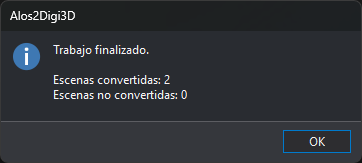
If conversion cannot start, or is interrupted by an error outside an individual scene's conversion, Alos2Digi3D displays The conversion was interrupted by an unexpected error. The files left in the list have not been processed.
Cancel conversion
Click Exit or press Esc. If a conversion is running, Alos2Digi3D stops it, deletes that scene's TIFF and closes. TIFFs for completed scenes are retained.
5. Result
Alos2Digi3D creates one TIFF per scene:
- It is saved in the scene's folder.
- Its name is the VOL file name without its first four characters, the
VOL-prefix, and with the.tifextension. For example,VOL-<escena>-<producto>produces<escena>-<producto>.tif. - An existing TIFF is overwritten.
- It is a BigTIFF, the TIFF variant supporting files larger than 4 GB.
- It has one grayscale channel.
- It contains the full-resolution image followed by the pyramid levels specified in Maximum pyramid level to create, all in the same file.
- It is rotated 90 degrees counterclockwise relative to the
IMG-NNfiles: each line in those files is a TIFF column, and the lowest-numbered detector is at the bottom. The TIFF's width equals theIMG-NNfiles' line count.
Alos2Digi3D generates no other files: no georeferencing file, orientation or RPC coefficients.
6. Use the TIFFs in Digi3D.AI
The TIFFs already have tiles and pyramid levels, so processing with the Pyramid level generator is unnecessary.
They have no georeferencing or orientation. None of the RPC Satellite sensor extensions reads ALOS scene files, so orienting the TIFF in the photogrammetric window requires orientation in a format supported by those extensions. That orientation must correspond to Alos2Digi3D's rotated image.
Log messages
| Message | Cause |
|---|---|
| The scene VOL file has only n of the 4 expected sensor images | The folder contains fewer than four IMG-NN files with the same <escena> and <producto> as the VOL file. If the VOL file name does not have three hyphen-separated parts, n is 0. |
| The file IMG file is not in the expected CEOS format (field field) | An IMG-NN header field does not have the value required by CEOS. The message gives the field name in English, as in the format specification. For ImagenCEOS.imageRecordLength, the record length is not what Alos2Digi3D expects: 98 bytes plus the number of pixels per line. For ImagenCEOS.numberOfImageRecords, the file has no lines. |
| Skipping the scene VOL file: the file IMG file has n bands, and the conversion only supports files with one band. | An IMG-NN file does not have exactly one band. |
| Skipping the scene VOL file: the file IMG file is truncated. It is n bytes long and needs at least m. | An IMG-NN file ends before the data indicated by its header, for example because copying or downloading did not finish. |
| Skipping the scene VOL file: the file IMG file has n pixels per line and the file IMG file has m. All the detector images must have the same line width. | Two IMG-NN files in the scene have different numbers of pixels per line. |
| Skipping the scene VOL file: the file IMG file has n lines and the file IMG file has m. All the detector images must have the same number of lines. | Two IMG-NN files in the scene have different line counts. |
| Skipping the scene VOL file: the file IMG file has n bytes per pixel, and the conversion only supports files with 1 byte per pixel. | An IMG-NN file does not have exactly one byte per pixel. |
| The file VOL file could not be read: reason | Alos2Digi3D could not open or read one of the scene's IMG-NN files. The message gives the VOL file path, rather than the IMG-NN path, and the error reason. |
| Skipping the scene VOL file: the file TIFF file cannot be created. | Alos2Digi3D could not create the TIFF, for example because the folder is not writable. |
| Skipping the scene VOL file: libtiff error while writing or rereading the file TIFF file (reason). The incomplete file has been deleted. | Writing the TIFF failed after creation, for example because the disk filled up. The reason is libtiff's English message, or libtiff gives no reason. |
| Unexpected error while processing the file VOL file: reason | An unexpected error occurred during scene conversion. |
| Unexpected error while processing the file VOL file | An unexpected error occurred without a description during scene conversion. |
In every case, Alos2Digi3D counts the scene as not converted and continues with the next scene. If the error occurs after creating the scene's TIFF, it deletes that TIFF.
See also
- Pyramid level generator: creates TIFF image tiles and pyramid levels.
- RPC Satellite: sensor for satellite images with RPC coefficients.