Photogrammetric sensors
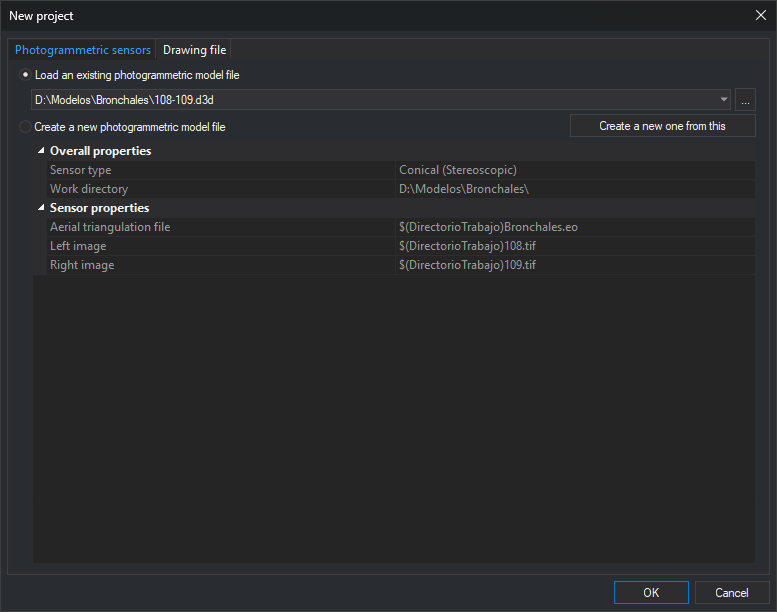
This New project tab opens a photogrammetric model in a photogrammetric window. The model is saved in a model file (.d3d) specifying its sensor and files (images, orientations, camera…).
Fields
- Load an existing photogrammetric model file: opens a previously created
.d3d.- File list: last ten model files opened or created with OK on this tab. Files that no longer exist are omitted.
- ...: selects another
.d3d, adds it if not listed and selects it. File selection opens in Digi3D.AI's last used folder. This button, Work directory and other file selection dialogs update that folder. - Property grid: shows the selected file's properties in gray, without editing, so you can check what will be loaded. Overall properties contains Sensor type and Work directory, the file's folder. Sensor properties contains sensor parameters; paths saved relative to the work directory appear with the prefix
$(DirectorioTrabajo), for example$(DirectorioTrabajo)108.tif. If the file cannot be read, Sensor type shows the reason. With Web Map Service and Web Map Tile Service, the grid shows saved values without connecting to the server. - Create a new one from this: prepares a new model with the selected file's data. Only available when the grid shows properties of a readable file. Selects Create a new photogrammetric model file and fills Work directory, Sensor type and sensor properties with editable values from the file, and proposes in .d3d file name the name the sensor forms from those values. Paths prefixed with
$(DirectorioTrabajo)become absolute so the new model can be saved elsewhere. For example, creating Conical model109-110from108-109only requires changing the images: the aerial triangulation file and work directory are retained. All data saved by the sensor in the model file are copied, including data absent from the grid, such as Conical camera files. The last cursor position, scale factor and image rotations are not copied.
- Create a new photogrammetric model file: creates and opens a
.d3d.- Overall properties
- Work directory: folder where the model file is created. Initially the last created model's folder.
- Sensor type: model sensor. The alphabetical list offers installed sensors allowed by the license. Without the photogrammetry module, only the orthophoto sensor is offered.
- .d3d file name: name, without extension, of the model file. When you choose Sensor type, Digi3D.AI proposes the model name formed by the sensor (with Conical, the left and right image names separated by a hyphen) and recalculates it whenever you change a property and when you click Create a new one from this, unless you have typed a different name in this field.
- Sensor properties: selected sensor parameters. Each sensor requires its own; for example, Conical requires the aerial triangulation file and left and right images.
- Overall properties
- OK: opens the selected file, or creates a file with the value of the .d3d file name field and the
.d3dextension and opens it. Before creating it, Digi3D.AI removes leading and trailing spaces from the name and a typed.d3dextension. If the resulting name is empty, ends with a period or a space, contains control characters or any of the characters\ / : * ? " < > |, or is a reserved Windows name (CON,PRN,AUX,NUL,COM1toCOM9andLPT1toLPT9, with or without extension), Digi3D.AI displays a message, selects the field and the dialog remains open. If that name already exists in the work directory and the file is not the copied model's file from Create a new one from this, Digi3D.AI asks “Do you want to save the new model in the existing model file?”: Yes writes sensor data there, and No leaves the dialog open with the field selected. If the new model was prepared with Create a new one from this and the destination file is the copied model's file (for example, because no data changed), Digi3D.AI asks whether to overwrite the copied model file. Yes writes sensor data there and removes image rotations for Conical, or the last cursor position and scale factor for Web Map Service. No leaves the dialog open. If no Sensor type is selected under Create a new photogrammetric model file, no file is created and the selected Load an existing photogrammetric model file entry is opened. For Web Map Service and Web Map Tile Service, the only sensor property is Server URL: if empty or invalid, a message appears, the property is selected and the dialog remains open. The layer and other parameters are selected after opening the model, in the photogrammetric window's sensor pane. - Cancel: closes without opening anything.
With Configuration's Store the photogrammetric project or model as a reference file enabled, if the Photogrammetric project pane has no loaded project, Digi3D.AI saves the opened model path in the drawing file's reference file list file, provided a drawing window is open and its drawing file is writable. When opening a drawing file with an associated photogrammetric model, Digi3D.AI opens the model in a photogrammetric window in the cases described under Photogrammetric project or model in the reference file list file documentation.