Vertical tab
This tab groups the main tools for entering road vertical alignments (vertical design). The current road document's Vertical view must be active for it to appear. Each horizontal alignment can have any number of vertical alignments. It can also have the profile obtained by projecting it onto a DTM. The tab looks as follows:
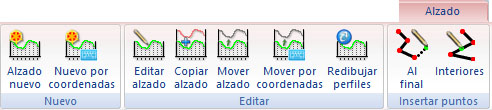
The following commands are available:
- New alignment: creates a new vertical alignment. Left-click the points defining its straight sections. Right-click to finish. The program displays a dialog with the recorded points and other characteristics of the new vertical alignment.
- New by coordinates: creates a new vertical alignment like the previous option, but opens the dialog directly to add points with known coordinates.
- Edit alignment: graphically edits an existing vertical alignment. Left-click the alignment to edit. Once selected, move its points by left-clicking and dragging them. If the desired element is not selected, right-click to search for another entity at the same location.
- Copy alignment: copies an existing vertical alignment. Left-click the alignment to copy. If the desired alignment is selected, left-click again to confirm. Otherwise, right-click to keep searching at the same location until it is found. Once accepted, the program displays the vertical alignment information dialog.
- Move alignment: moves an existing vertical alignment. Left-click the alignment to copy. Once the desired alignment is selected, drag it to the new location while holding the left mouse button. If the desired alignment is not selected, right-click to keep searching at the same location until it is found.
- Move by coordinates: moves an existing vertical alignment by entering its displacement with the keyboard. Left-click the alignment to copy. Once it is selected, the program displays a dialog for specifying the X and Y displacement. If the desired alignment is not selected, right-click to keep searching at the same location until it is found.
- Redraw profiles: regenerates the view containing vertical alignments. Useful after graphically editing profiles and moving some out of their initial order. The program only recalculates the profile data bands and redraws them on screen.
- Add vertex to the final: adds new vertical alignment vertices at either end. Left-click the alignment to change. If the desired alignment is not selected, right-click to search for others at the same location. Left-click again to confirm. Then enter vertices, which are added at the nearest end. Right-click to finish entering vertices; a dialog displays the alignment's characteristics. Press [ESC] during editing to cancel.
- Add vertex inside: adds new vertices within the vertical alignment. Left-click the alignment to change. If the desired alignment is not selected, right-click to search for others at the same location. Left-click again to confirm. Then enter vertices near the vertical alignment.