Codes
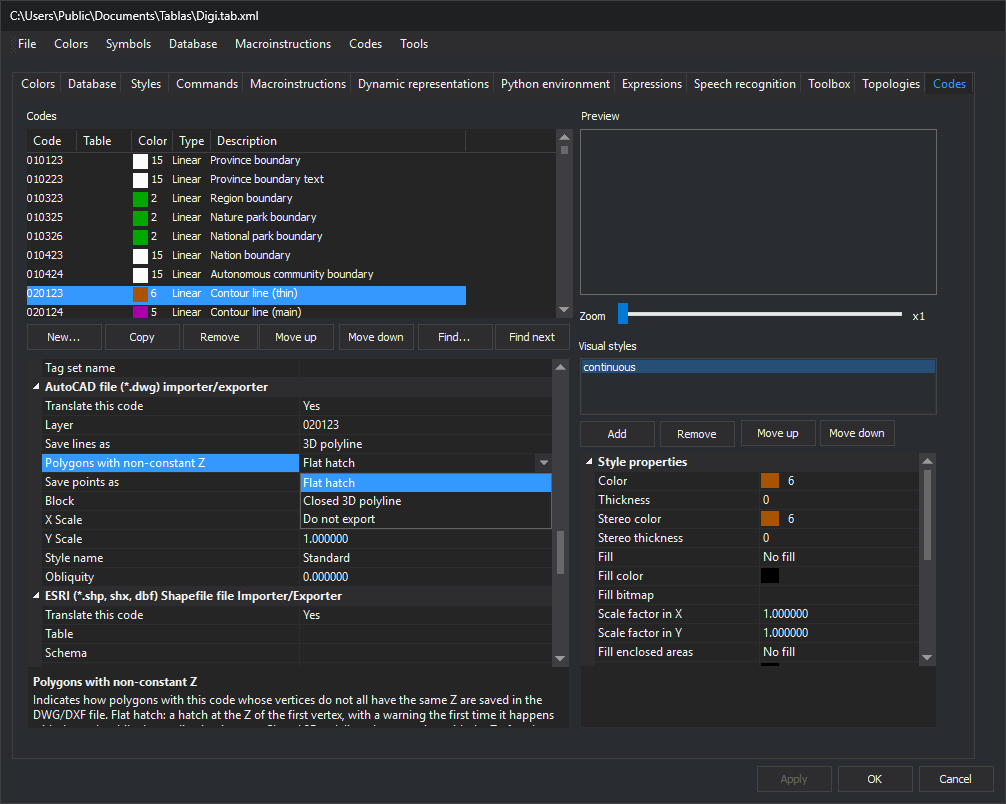
This tab configures code table codes and their representations.
Code list
Codes has one row per code, with Code, Table, Color (first representation's color number and swatch), Type and Description. Its context menu moves the selected code up, down, to the beginning or to the end.
List buttons:
- New...: opens New Code, requesting a name and warning if it already exists.
- Copy: creates a code with the selected code's properties, requesting its name in the same dialog.
- Remove: deletes the selected code without confirmation.
- Scroll up and Scroll down: change the selected code's position.
Remove, Scroll up, Scroll down and context menu options modify the code table immediately, without Apply.
- Search for...: opens Search, finding a code by name. Allow searching by description, Match case and Whole words only adjust matching.
- Search next: finds the next match with the same criteria.
Code properties
The lower-left grid shows selected code properties in these categories:
- Code properties.
- Database.
- Quality control: Analyze quality control when digitizing and Quality controls to apply, opening Quality controls.
- One category per importer/exporter translating codes, such as AutoCAD file (*.dwg) importer/exporter or ESRI Shapefile (*.shp, shx, dbf) importer/exporter, containing that format's code translation parameters. See each format under Importers and exporters; for example, Polygons with non-constant Z in the image is described under DWG and also applies to DXF.
Preview and visual styles
Preview draws the selected code with its representations. Zoom changes drawing scale.
Visual styles lists the code's representations. A geometry with this code is drawn with every representation, in list order.
- Add: opens Select style and adds a representation with that style.
- Remove: deletes the selected representation.
- Scroll up and Scroll down: reorder it.
Selecting a representation shows color, weight, stereo color and weight, fill and other properties under Style properties. ... beside color properties opens Select color with the code table palette.
Text with TrueType fonts
These representation properties control code text:
- Font: TrueType draws text with TrueType font. A number selects that Digi font.
- TrueType font: name of an installed Windows TrueType font.
- Fill TrueType fonts: Yes fills TrueType text in the photogrammetric window; No draws character outlines only. Fill and outline use the same color. Default: Yes. The drawing window always fills TrueType text, regardless of this property.
PointCloud and Stereoscopic orthophoto draw text with the code's first representation and use that representation's Fill TrueType fonts. Other sensors use each representation's value.
Apply changes
Selected code changes apply with Apply, OK or when selecting another code: the latter applies without asking.
Creating, copying or moving a code
With unapplied changes, New..., Copy, Scroll up or Scroll down opens No changes have been applied:
- Apply the changes: applies code changes. Default button.
- Discard the changes: discards changes; a new code is removed from the list. Esc selects this button.
New... and Copy then continue to request a name; Copy stops if the discarded code was new, since it no longer exists. Scroll up and Scroll down do not move the code: select it again and click the button.
Changing pages
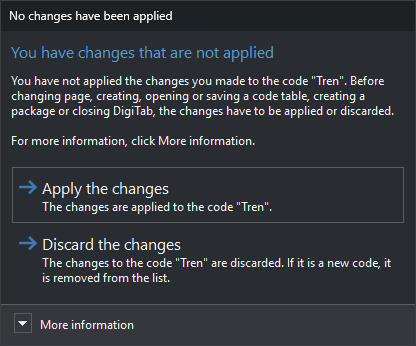
Appears with unapplied code changes when switching tabs, clicking OK or selecting New, Open..., Save, Save as... or a package creation option under File.
- Apply the changes: applies code changes. Default button.
- Discard the changes: discards changes; a new code is removed. Esc selects this button.
More information explains that other pages' changes, such as a visual style name, may affect codes. Either button continues the tab change or operation and clears property grids.
Codes imports codes from other formats and operates on several codes at once.