Search
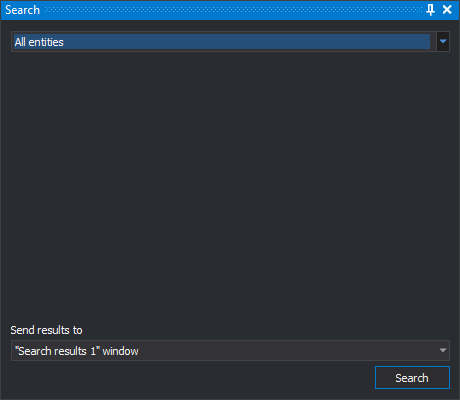
This pane searches drawing file entities by a criterion.
Digi3D.AI's search types are in the open source DigiNG.Search repository. Consult it to see how each search works and use it as an example for programming your own.
Fields
- Search type (upper drop-down): search criterion. The pane's central area shows options for the selected type.
- Send results to: destination for found entities. Initially Search results 1 is selected.
- Search results 1 or Search results 2: shows that pane, clears its previous results and adds found entities.
- Active command: the running command. If it supports multiple selection, it receives found entities and performs its task on them.
- Search: searches the active drawing file in the drawing window. Enabled when a search type is selected; does nothing if no drawing window is open.
Search types
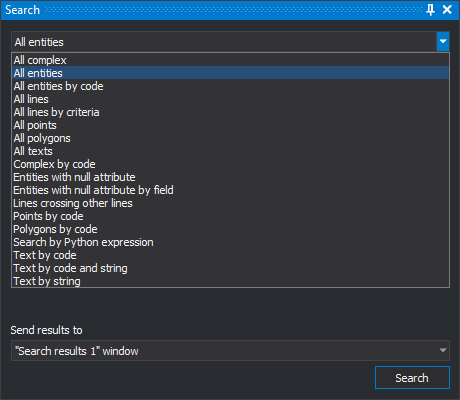
- Search by Python expression
- Complex by code
- Entities with null attribute
- Entities with null attribute by field
- Lines crossing other lines
- Poligons by code
- Points by code
- Text by string
- Text by code
- Text by code and string
- All entities
- All entities by code
- All lines
- All lines by criteria
- All complex
- All polygons
- All points
- All texts
Showing the pane
Select Edit/Search.
Example
To export every text in the drawing file to a new file:
- Select File/Export selected entities....
- Open the pane with Edit/Search.
- Select All texts.
- Under Send results to, select Active command.
- Click Search.
- Enter the destination filename and click Save.