Select color
This dialog selects a color. It has two versions:
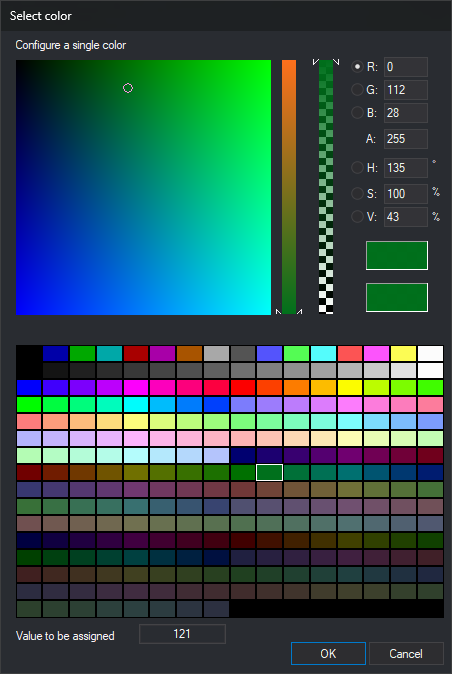
- With palette: opened by ... in code representation color properties in the code table editor's Codes tab: Color (drawing window), Stereo color (photogrammetric window), Background color and Site background color. Also opened by BACKGROUND_COLOR and UNKNOWN_COLOR if a code table is loaded. Selects a code table palette color or an RGB color with transparency.
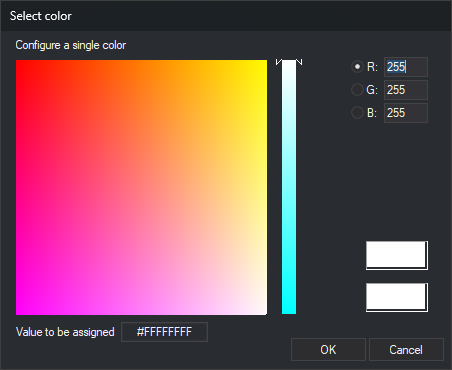
- Without palette: opened by other color properties, such as those in Configuration or a database field's background color, and by POINTER_COLOUR. Selects an RGB color.
Fields
- Configure a single color: the large square and the vertical bar to its right select the color. The selected radio button determines which component the vertical bar controls; the square varies the other two.
- R, G and B: red, green and blue components, from 0 to 255.
- A: opacity, from 0 (transparent) to 255 (opaque). The second vertical bar also changes it. Absent when the edited value does not store opacity, such as a field's background color or command colors.
- H, S and V (with palette only): hue in degrees (0 to 359), saturation and brightness as percentages.
- Color samples: the upper sample shows the selected color; the lower one shows the initial color. Clicking the lower one restores the initial color.
- Palette (with palette only): the code table's 256 palette colors. Click one to select it. BACKGROUND_COLOR and UNKNOWN_COLOR save that entry's RGB color, rather than its number.
- Value to be assigned: the value assigned to the property. The color number if a palette color is selected, or
#RRGGBBAA(red, green, blue and opacity in hexadecimal) otherwise. - OK: assigns the color. If the values entered in R, G, B or A differ from the selected color, assigns the entered values as
#RRGGBBAA. - Cancel: closes the dialog without changing the color.