Select codes
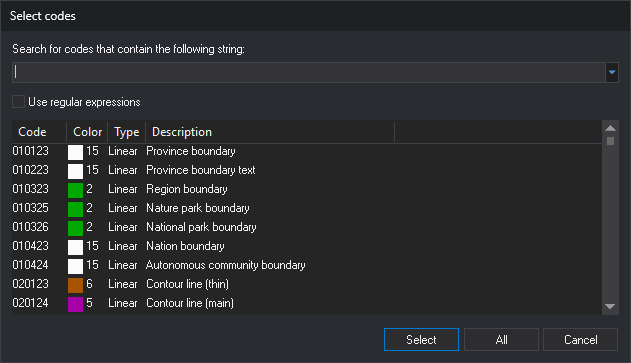
This dialog box searches the code table so you can select one or more codes. It opens from Add... in Select codes and directly from some commands, such as COD.
The title bar shows "Select codes", the same title as Select codes, but these are different dialog boxes: this one searches the code table; the other holds the code list passed to a command and has Clear, Delete, and Add... buttons. The command opening the dialog box can replace its title with its own text.
Fields
- Search for codes that contain the following string: search text. The list displays codes whose name or description contains that text, case-insensitively, and codes whose name matches the text followed by
*. The drop-down list offers code table tags prefixed with#: choosing one displays codes with that tag. - Use regular expressions: interpret the text as a regular expression that must match the full code name or full description, case-insensitively. Invalid expressions leave the list empty. If comparing the expression with a code is too expensive (for example,
(a*)*bwith long text), the search stops at that code. Digi3D.AI remembers this check box state. - Code list: search results in the Code, Color (color sample and number), Type (Linear, Point, or Virtual), and Description columns. Codes with Activated set to No appear only if the command opening the dialog box allows them. If the search text starts with
#, including when typed manually, the list displays codes with that tag and regular expressions are not applied. - Select: pass the codes selected in the list. If none are selected, pass the entered text as a code; it can contain wildcards. Double-clicking a listed code is equivalent to selecting it and clicking this button.
- All: pass all listed codes.
- Cancel: close the dialog box without passing any code.
Using the dialog box
- Type part of a code name or description in the search field, or choose a tag in the drop-down list.
- Select the codes you need. Hold Ctrl or Shift while clicking to select multiple codes.
- Click Select, or All to pass all listed codes.
Notes
If the command opening the dialog box accepts only one code, the list allows a single selection and All is disabled.