Image not prepared for Digi3D.AI
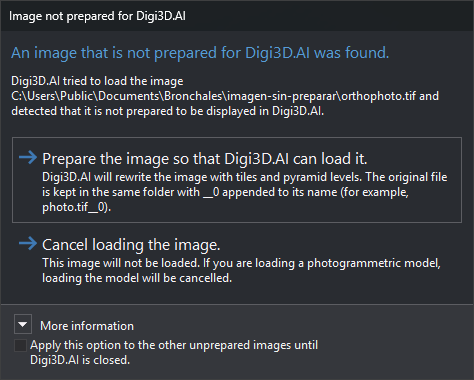
Digi3D.AI displays this dialog when loading sensor images (orthophoto, conical camera, satellite sensors, ADS40…) if a TIFF image is not tiled. Digi3D.AI requires tiled TIFF images to avoid loading the entire image into memory.
A tiled image without pyramid levels does not open this dialog: it opens the “Compatible image without pyramid levels” dialog, which offers to generate the levels (see the Pyramid Level Generator).
Digi3D.AI does not display this dialog for an image read from a URL: if that image is not compatible, Digi3D.AI displays the error message and does not offer to convert it.
Contents
- Path of the unprepared image.
- More information: explains tiles and pyramid levels.
Buttons
The dialog has no close button. Esc is equivalent to Cancel loading the image..
- Prepare the image so that Digi3D.AI can load it.: renames the original by appending a
__Nsuffix to its full filename, with the first free number (for example,foto.tifbecomesfoto.tif__0; if that file exists, usesfoto.tif__1,foto.tif__2…). Then writes under the original name a COG (Cloud Optimized GeoTIFF): a tiled TIFF with the pyramid levels inside the same file, with the compression of the original image in all the levels, and loads it. The results window and status bar show progress. If conversion fails or is interrupted by an exception, Digi3D.AI tries to delete the temporary file and the output file it has written and to restore the initial name of the original file, and does not load the image. If conversion fails, Digi3D.AI adds to the results window “Digi3D could not convert the image file to a Cloud Optimized GeoTIFF (COG).”; if it also cannot restore the initial name of the original file, the message gives the path where the original remained. - Cancel loading the image.: does not load the image. If it belongs to a photogrammetric model, the model is not loaded.
Apply this option to the other unprepared images until Digi3D.AI is closed checkbox
Select “Apply this option to the other unprepared images until Digi3D.AI is closed.” to save the action of the button you click (or cancellation with Esc) and apply it without showing the dialog to all unprepared images loaded until Digi3D.AI closes.
Notes
To prepare several images together without opening them in Digi3D.AI, use the Pyramid level generator.