Select dongle
This program specifies which dongle a particular program connects to.
All our applications (Digi3D.AI, Topcal21, MDTopX,...) install Select dongle for this purpose.
If you have several dongles and configure none for a program, it connects to the first available, which may lack a license for that program.
Suppose dongle A has a purchased Digi3D.AI license and B has an MDTopX rental.
Without configuration telling MDTopX to use B, it may find A first and display Technical support expired.
Tell MDTopX to use B with Select dongle, under Start/All Programs/Digi21.net/MDTopX.
For Digi3D.AI, find it under Start/All Programs/Digi21.net/Digi3D.AI.
For Topcal21, find it under Start/All Programs/Digi21.net/Topcal21.
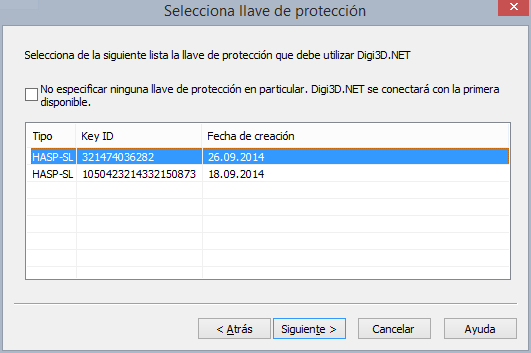
The program lists connected dongles with the configured one selected. Choose the desired dongle and click OK.
A checkbox specifies that no particular dongle should be configured. Checking it and clicking OK removes the specific configuration; the program connects to the first available dongle.
Administrator permissions are needed to save configuration: Windows asks for confirmation on startup.
This screenshot shows Digi3D.AI's Select dongle: