Mice, joysticks, pads configuration
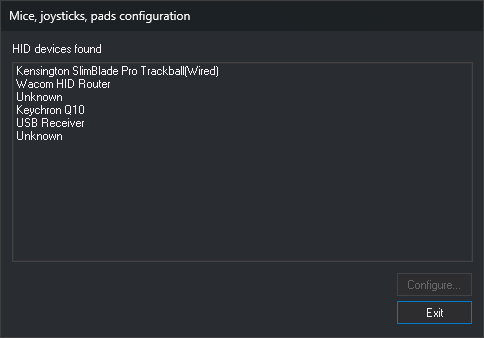
This dialog configures how mice, joysticks, and controllers detected by Windows as HID devices move the photogrammetric window cursor.
Opening the dialog
Select Tools/Configuration of mice, joysticks, pads, ... from the menu. This option only appears in the menu Digi3D.AI displays when no drawing or photogrammetric window is open.
Fields
- HID devices found: mice, joysticks, and controllers connected to the computer, with the product name supplied by each device. If a device supplies no name, it appears as Unknown. The list is populated when Digi3D.AI starts: a device connected afterward does not appear until the program restarts. A joystick Digi3D.AI cannot open does not appear in the list.
- Configure...: opens the selected device parameters. Disabled while no device is selected. Opens Mouse parameters for a mouse and Device parameters for any other device.
- Exit: closes the dialog.
Mouse parameters and Device parameters
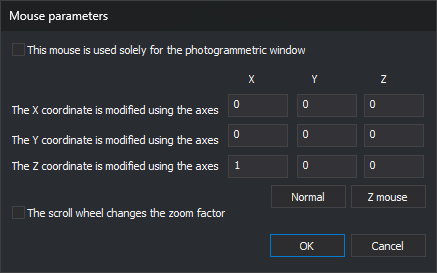
The coefficient table specifies how much each cursor coordinate (X, Y, and Z rows) changes when moving each device axis (X, Y, and Z columns). For example, 1 in the Y row and X column makes movement along the device X axis change the cursor Y coordinate. A negative value reverses the direction.
If the device has no saved parameters, the table contains 1 0 0 in row X, 0 -1 0 in row Y, and 0 0 1 in row Z: each axis moves its corresponding coordinate, with Y reversed.
Example: a trackball dedicated to Z. With Z mouse, moving the ball left and right raises and lowers Z (row Z, column X = 1):
Example: a mouse for X and Y. With Normal, the mouse moves cursor X and Y. In this screenshot, The scroll wheel changes the Zoom Factor is checked, so the wheel changes zoom. With this checkbox cleared, the wheel changes Z (row Z, column Z = 1):
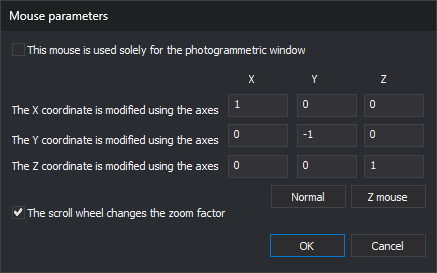
Mouse parameters adds:
- Normal: the mouse X axis moves cursor X, Y moves cursor Y in the opposite direction, and Z (the wheel) moves cursor Z.
- Z mouse: horizontal mouse movement changes cursor Z, and no axis moves X or Y. This lets you dedicate a second mouse to Z.
- The scroll wheel changes the Zoom Factor: turning the wheel forward runs ZOOMIN in the photogrammetric window; turning it backward runs ZOOMOUT. With this option checked, the wheel does not act as the Z axis.
- This mouse is used solely for the photogrammetric window: Digi3D.AI saves this option, but it has no effect: the mouse only moves the photogrammetric window cursor while that window has captured it, whether checked or not.
Click OK to save parameters or Cancel to discard them.
Notes
- Parameters are saved for the Windows user and device product name. Two devices with the same name share parameters.
- To assign commands to mouse buttons, use Programming buttons.