Invalid database attributes
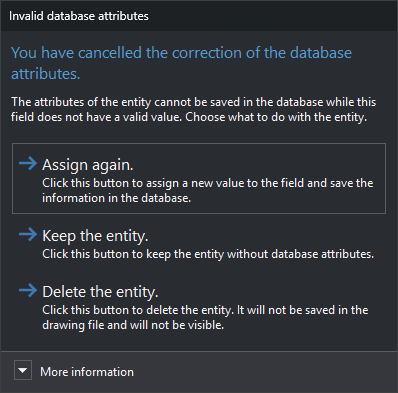
Digi3D.AI displays this dialog when you click Cancel or press Esc in Error in user attributes. That dialog appears when Digi3D.AI cannot assign an attribute value to the database record, in either case:
- The field has Allow length 0 disabled in the code table and the attribute has no value. Digi3D.AI checks this before sending the value to the database.
- The database engine rejects the value. For example, text longer than the field size.
The dialog appears when registering a new entity in a drawing file connected to a database and when clicking OK in Edit codes.
Contents
- More information: database table, field name and error text shown in Error in user attributes.
Buttons
Neither Esc nor the window close button can close the dialog: you must choose one of these buttons.
- Assign again.: reassigns all record field values. If the field value is still invalid, Error in user attributes reappears.
- Preserve entity.: saves the entity in the drawing file. The failed code's record is not saved in the database: for a new entity, that code has no linked record. The entity's other codes are stored normally.
- Delete entity.: discards a new entity: it is neither saved in the drawing file nor displayed. If the dialog appears after clicking OK in Edit codes, Digi3D.AI closes the editor and deletes the entity from the drawing file. Recover it with UNDO.
From the Edit codes dialog
- Preserve entity.: the editor closes and the entity retains the editor's changes. The failed code's record retains its previous database values.
- Delete entity.: records for codes before the failed code have already been saved in the database. Deleting the entity does not delete those records.