Process locally
Process locally prepares a batch of clouds before using them in Lot Of Points. Studio creates each cloud's level of detail and saves it in the computer's cache for viewer reuse. Original files retain their contents and no data is uploaded to Azure.
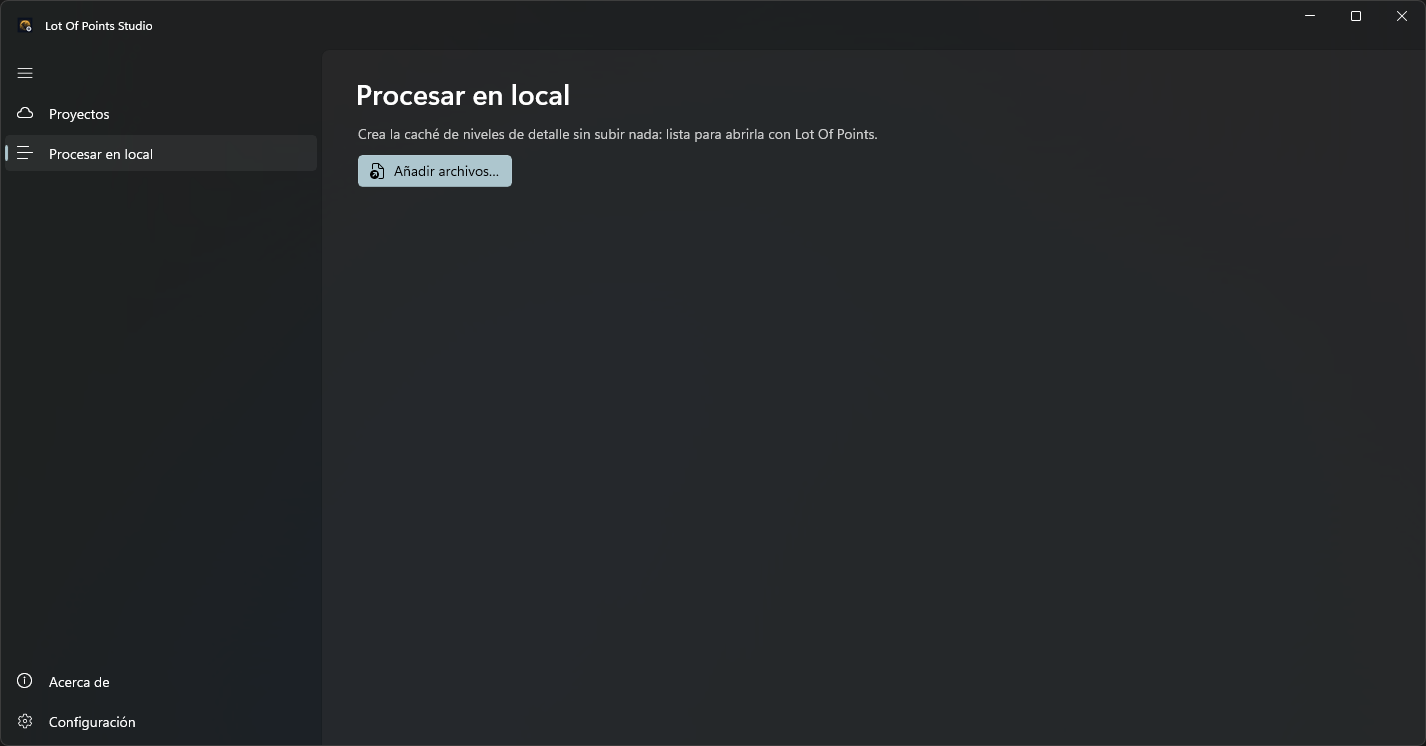
Add files
Select Process locally in the side menu and click Add files…. You can choose several files at once, in LAS (.las, point cloud interchange format), LAZ (.laz, compressed LAS), E57 (.e57), PTX (.ptx, gridded scans), PTS (.pts, text points) or PCD (.pcd, Point Cloud Data). Studio determines the reference system before adding each file as a separate job in Tasks, at the bottom of the window.
Studio first checks for an existing cache. If found, it reuses it and displays Already cached. Otherwise it analyzes the original and organizes points by level of detail, allowing the viewer to load parts as needed.
Other Studio pages remain usable while the batch is processed. The queue continues when changing pages; small files can run concurrently. Large files are processed one at a time, without other simultaneous jobs.
Reference system
Before queuing files, Studio searches for their reference system in WKT (Well-Known Text) in this order:
| Source | Use condition |
|---|---|
Level-of-detail cache .prj |
Valid WKT or one with a local horizontal component, including the unknown system. |
| System declared in the file | For LAS and LAZ, record 2112 WKT, then WKT obtained from GeoTIFF (georeferenced TIFF, Tagged Image File Format) keys; for E57, coordinateMetadata WKT or its EPSG (European Petroleum Survey Group) code's system. |
.prj beside PTX, PTS or PCD |
Valid WKT or one with a local horizontal component. The .prj retains the original name and replaces only its last extension: nube.v2.pts uses nube.v2.prj. |
Studio uses the obtained system without asking. The reader supports WKT version 2 from 2019 (WKT2:2019) with datum ensembles (ENSEMBLE) and compound systems with horizontal and vertical components. Studio does not read a .prj beside LAS, LAZ or E57. Assigning a system does not transform coordinates.
One dialog requests the reference system for files without an accepted system, listing up to five filenames. The picker can declare the system unknown, even with another system preselected. Cancel adds none of the selected files to the queue. An error reading or requesting a system also queues no files and displays the error.
Studio writes the obtained system to <nombre>.prj when reusing a cache or finishing its creation. Failure to write the cache .prj puts the job in Error and shows the reason. If cache creation is canceled or fails, Studio deletes the incomplete cache and does not write the .prj.
Monitor work
Expand Tasks to see each file's status and progress. The heading also shows the number of queued or running jobs and overall progress.
| Status | Meaning |
|---|---|
| Queued | Waiting its turn. |
| Analyzing the file | Reading the original cloud. |
| Creating the level of detail | Organizing and writing cached points. |
| Done | Job finished. |
| Already cached | A prepared cache was found. |
| Canceled | Job canceled. |
| Error or problem message | Job could not finish; the row shows the reason. |
This panel also shows publications started from Projects. Those jobs enter Uploading to Azure after cloud preparation.
To cancel a job, click its row's cross. Cancel all requests cancellation of all queued and running jobs. Cancellation during creation can wait until the level-of-detail creation code checks the request; a partially created cache is deleted.
Result location
By default, Studio uses %TEMP%\LOP as cache root and stores clouds in LiDAR subfolders. Change the root in Settings. Each cloud has a subfolder with level-of-detail files, statistics and any images supplied by the source format.
| File | Contents |
|---|---|
<nombre>.index |
Index locating points in each region and level of detail. |
<nombre>.index.points |
Cloud points organized for viewer reading. |
<nombre>.index.atributos |
Original-record correspondence and additional point attributes. |
<nombre>.stats.json |
Statistics calculated from cache and original. |
<nombre>.prj |
Cloud reference system in WKT. |
Cache identification includes filename, modification date and level-of-detail format version. If the original changes, Studio prepares a new cache next time it processes the modified file.
Open the prepared cloud
After completion, open the original from Lot Of Points Layers with Open point clouds or vector layers. If Studio used the viewer's cache root, the prepared level of detail is found and reused.
For Digi3D.NET's cache, choose %TEMP%\Digi3D.NET as Studio's root. The location must match that used by the reading application.