Create model
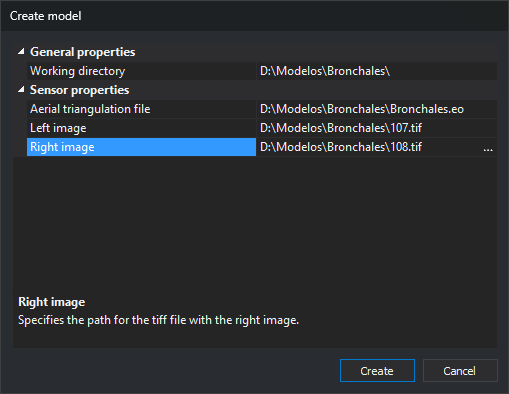
This dialog creates a model file (.d3d) and adds it to the selected strip. It is opened by Create in the Models list of Create photogrammetric project.
Fields
- Overall properties
- Work directory: folder where the model file is created. Default: project file folder.
- .d3d file name: name, without extension, of the model file. Digi3D.AI proposes the model name formed by the sensor (with Conical, the left and right image names separated by a hyphen) and recalculates it whenever you change a dialog property, unless you have typed a different name in this field.
- Sensor properties: parameters of the sensor selected under Sensor in Create photogrammetric project. Each sensor shows its own parameters. For example, Conical requests the aerial triangulation file and left and right images.
- Description area: the lower area describes the selected parameter.
- Create: creates the model file in the working directory, using the value of the .d3d file name field and the
.d3dextension (for example, 107-108.d3d with Conical and the proposed name). Adds the model to Models and closes the dialog. - Cancel: closes without creating the model.
Notes
- Before creating the model file, Digi3D.AI checks the properties of the Web Map Service, Web Map Tile Service and 3D models sensors (for example, the server URL): if a property is invalid, Digi3D.AI displays a message and the dialog remains open. With the other sensors, Create accepts sensor parameters as they are.
- Before creating the file, Digi3D.AI removes leading and trailing spaces from .d3d file name and a typed
.d3dextension. If the resulting name is empty, ends with a period or a space, contains control characters or any of the characters\ / : * ? " < > |, or is a reserved Windows name (CON,PRN,AUX,NUL,COM1toCOM9andLPT1toLPT9, with or without extension), Digi3D.AI displays a message, selects the field and the dialog remains open. - If the
.d3dfile already exists in the working directory, Create asks “Do you want to save the new model in the existing model file?”. No leaves the dialog open with .d3d file name selected. Yes updates the file's working directory, sensor and parameters, preserving the rest of its contents. - If the file cannot be written, Digi3D.AI displays “Unable to create photogrammetric model”, with the file path and failure description. The model is still added to Models.
- Create does not check whether the model is already in Models. If it is, it appears twice.