Settings
Settings, accessible through the side menu gear, contains the working folder and two Azure access uniform resource locators (URLs). Studio saves fields when the user changes them and moves focus; there is no save button.
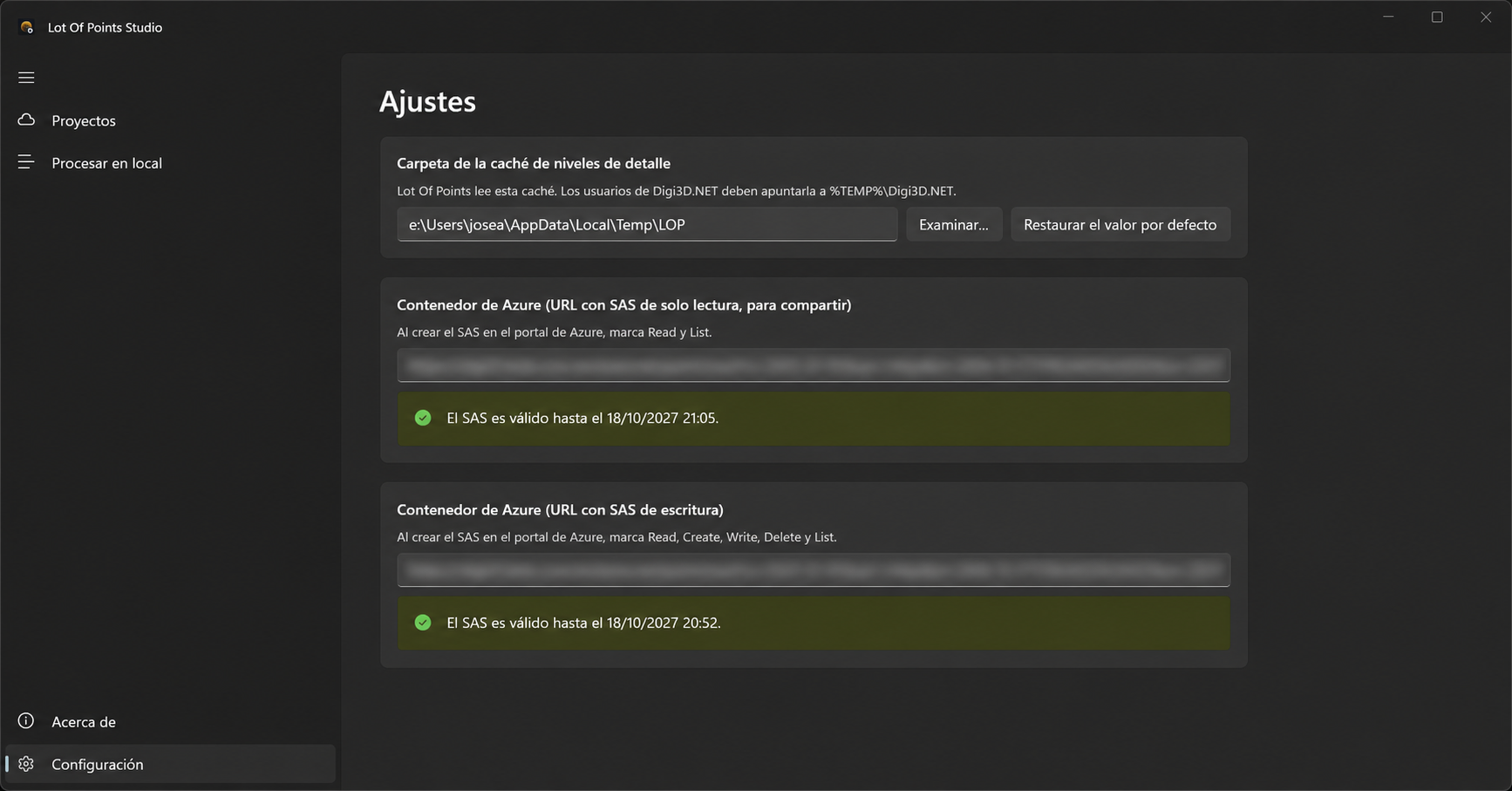
Cache folder
Level-of-detail cache folder specifies where Studio prepares clouds. The default is %TEMP%\LOP, the root used by Lot Of Points. Within the cache root, Studio creates LiDAR and a subfolder per file.
Enter another location or choose it with Browse…. Restore default selects the Lot Of Points root again. To share the cache with Digi3D.NET, use %TEMP%\Digi3D.NET and check that the application uses that location.
When typing the location manually, replace %TEMP% with your user's temporary folder path; you can also select it with Browse….
The folder must match the viewer's for it to find locally prepared clouds. Changing the setting determines where Studio creates caches for subsequently processed files; existing caches are not moved.
Azure container access
Studio works with an existing Azure Blob Storage container. Each field takes a full URL with a Shared Access Signature (SAS) after ?. The signature determines permissions and access expiration.
Read-only URL
Azure container (URL with read-only SAS, to share) forms each project's link and allows browsing the container when no write URL is configured.
To browse projects in Studio, the SAS needs Read and List, as indicated by the settings page checkboxes. A SAS with Read alone can open a known catalog in Lot Of Points, but cannot list container projects in Studio.
Write URL
Azure container (URL with write SAS) allows creating projects, publishing clouds and deleting content. It needs Read, Create, Write, Delete and List permissions.
If both URLs are configured, they must address the same container. Studio uses the write URL to list and manage projects. It uses the read URL to generate sharing links and for thumbnails when configured; otherwise thumbnails use the write URL.
Check access
Each URL's status appears below it. Studio checks SAS permissions and expiration. The write link requires Read, Create, Write, Delete and List. The read-link status requires Read; browsing projects without a write link also checks List. A valid read-link status in Settings does not establish permission to list projects. Studio shows validity end, expiration or missing permissions. With less than 48 hours remaining, the validity message appears as a warning.
This check analyzes the link without connecting to Azure. If opening Projects or publishing fails, also check that the URL addresses the right container and access is still valid.
Settings file
Studio saves settings in %LOCALAPPDATA%\LopStudio\settings.json. WriteContainerUrl uses the saved key SasContainer; ReadContainerUrl uses ReadSasContainer. Renaming the properties preserves values stored under those keys.